BioShell uses SSH key authentication. Before your environment can be set up, you need to generate an SSH key pair and email the public key to the BioShell team. If you have not done this yet, follow the SSH key generation tutorial first.
Once your environment is provisioned, the BioShell team will email you your connection details.
Keep your private key and your connection details secure, and do not share them publicly. Only ever send the public half of your key pair (the .pub file).
Connect via SSH
You connect to BioShell over SSH (Secure Shell), so you will need an SSH client on your local machine. Most operating systems now ship with one built in, and a few graphical clients are also popular on Windows. Choose whichever suits your platform:
| Platform | SSH client |
|---|---|
| macOS | The built-in Terminal app (Terminal.app) includes the ssh command. |
| Linux | Your terminal emulator with the built-in OpenSSH ssh command. |
| Windows | The built-in ssh command in Windows Terminal or PowerShell, or a graphical client such as MobaXterm, PuTTY, or an X server client. |
| Any platform | Visual Studio Code with the Remote - SSH extension, which connects and lets you edit files and run terminals inside your BioShell environment. |
On macOS, Linux, and modern Windows the ssh command is available directly from the terminal, so the command-line examples below work as-is. Graphical clients such as MobaXterm and PuTTY ask for the same details (host, username, and your private key file) through their connection dialogs instead.
Add an entry to ~/.ssh/config so SSH automatically uses your BioShell key without needing
to specify it each time:
Host bioshell
    HostName <your-bioshell-ip>
    User <username>
    IdentityFile ~/.ssh/bioshell_key
Then connect with:
ssh bioshell
Or connect directly without the config entry:
ssh -i ~/.ssh/bioshell_key <username>@<your-bioshell-ip>
First login
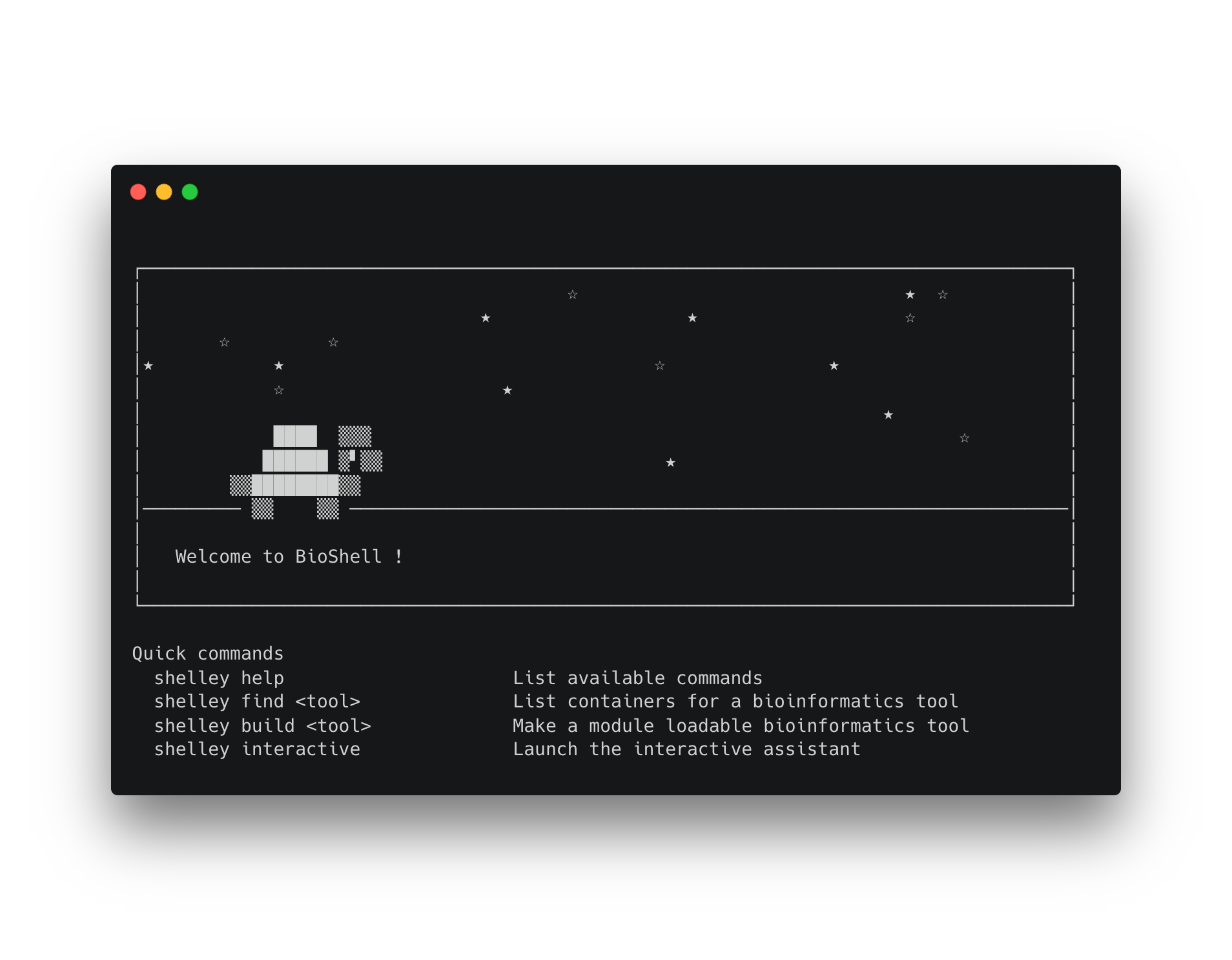
When you connect for the first time you are greeted by the BioShell welcome message and land in your home directory:
Confirm where you are with pwd:
pwd
You should see your home directory path:
/home/<username>
Once you are logged in, verify the two things you will rely on most: the software file system (CVMFS) and your storage volumes.
Software and data access
BioShell delivers its bioinformatics tools and reference data through a read-only
network file system mounted at /cvmfs/. Confirm the repositories are connected by running
the probe command:
cvmfs_config probe
You should see OK for each repository:
Probing /cvmfs/data.galaxyproject.org... OK
Probing /cvmfs/singularity.galaxyproject.org... OK
You can also list the mounted repositories directly:
ls /cvmfs/
data.galaxyproject.org singularity.galaxyproject.org
| Repository | Contents |
|---|---|
singularity.galaxyproject.org |
Containerised bioinformatics tools from BioContainers |
data.galaxyproject.org |
Reference genome builds and pre-built indexes |
The first time you access a path in CVMFS it may take a moment while metadata is fetched and cached. Subsequent access is fast. If a repository shows Failed!, wait a moment and run cvmfs_config probe again.
For how to find, install, and load tools from these repositories, see the Tools and reference data page.
Storage volumes
BioShell provides two storage locations:
| Location | Volume | Purpose |
|---|---|---|
/home/<username> |
Root volume (/dev/vda2) |
Your home directory: configuration, scripts, and installed modules. |
/mnt/data |
Data volume (/dev/vdb) |
Your working data: analysis inputs and outputs. |
Use lsblk to see how the volumes are laid out:
lsblk
NAME   MAJ:MIN RM SIZE RO TYPE MOUNTPOINTS
vda    253:0    0  30G  0 disk
├─vda1 253:1    0   1M  0 part
└─vda2 253:2    0  30G  0 part /
vdb    253:16   0 100G  0 disk /mnt/data
This shows your home directory on the root volume (vda) and your data volume (vdb) as a
separate disk. Check the size and available space of your home directory with df:
df -hT /home/<username>/
Filesystem     Type  Size  Used Avail Use% Mounted on
/dev/vda2      ext4   30G   14G   15G  49% /
And your data volume:
df -hT /mnt/data
Filesystem     Type  Size  Used Avail Use% Mounted on
/dev/vdb       ext4  100G   28K   99G   1% /mnt/data
The sizes shown above are examples only. Your home and data volume capacities depend on the allocation provisioned for your project.
Store your analysis inputs and outputs on the data volume at /mnt/data rather than in your home directory. The data volume is provisioned for your working data and keeps it separate from your home directory and installed software.
Interactive environments
Once connected, you can also open browser-based environments directly:
| Environment | URL |
|---|---|
| JupyterLab | http://<your-bioshell-ip>:8888 |
| RStudio | http://<your-bioshell-ip>:8787 |
See the Interactive environments page for full setup instructions.