Audio Transcription & Translation — Apollo Guide
Creating a Workload
Step 1: Create a workload
Navigate to the “Workload manager” section.
Select “Workloads”.
Click the “NEW WORKLOAD” button.
Select “Workspace” from the dropdown menu.
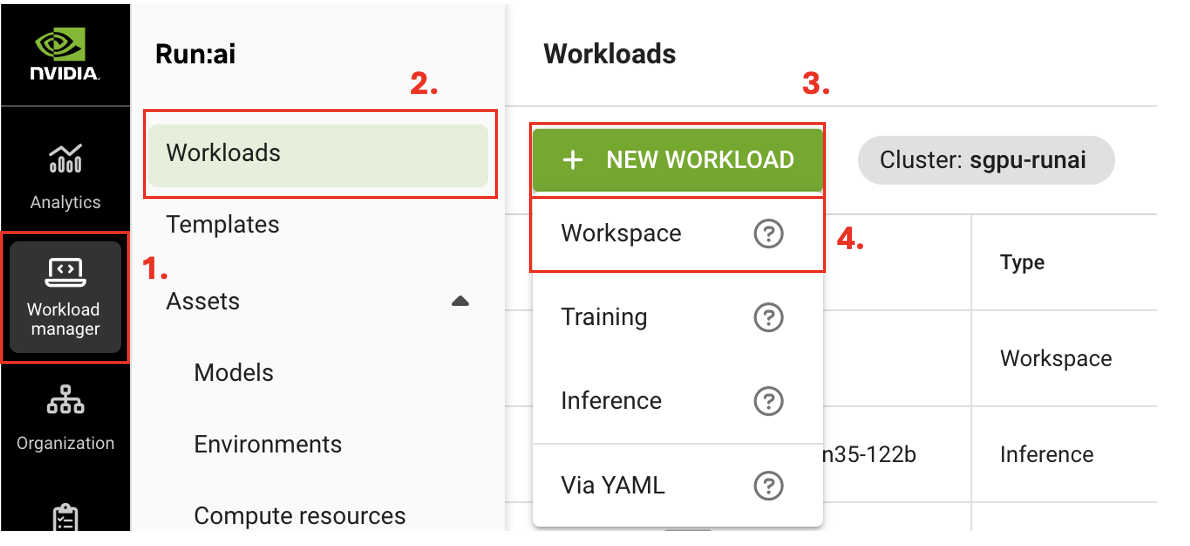
create workload
Step 2: Configure the workload
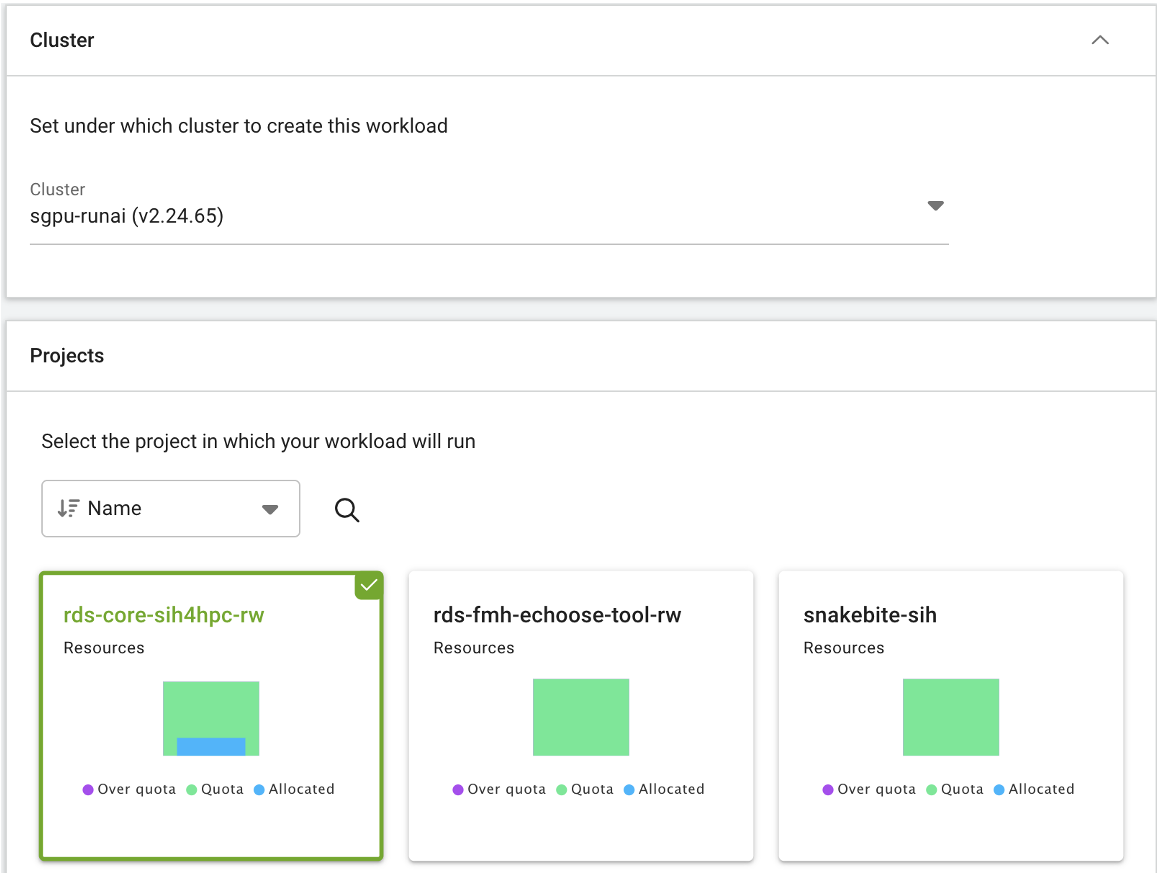
The “Cluster” section will be set automatically; you do not need to change this.
Under “Projects”, select the project it will be linked to (yours will differ from the examples in the image below depending on your project).
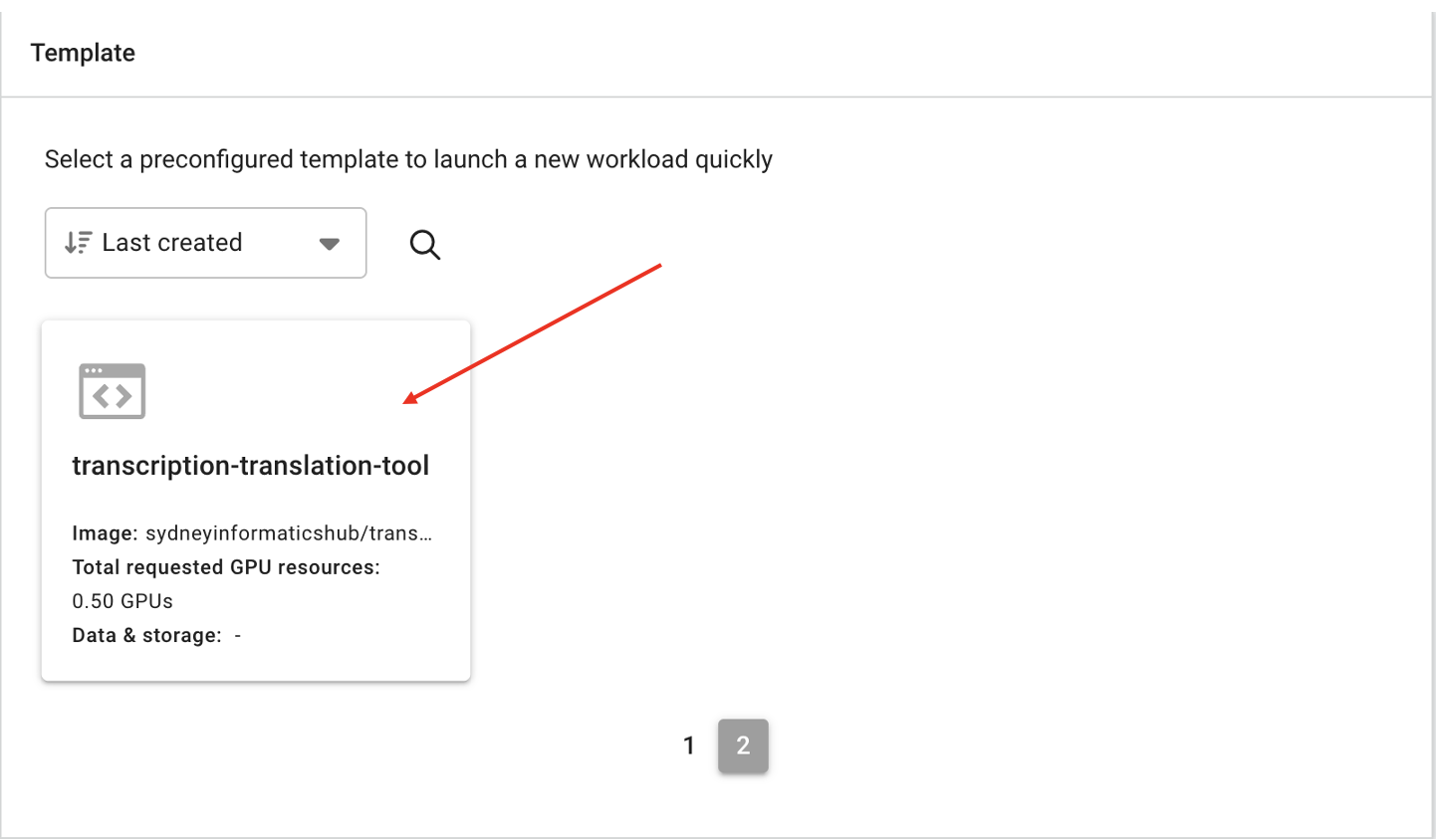
cluster and projects Under “Templates”, select “transcription-translation-tool”. It may not appear on the first page, so use the page numbers at the bottom to navigate through the list.
template Provide a descriptive name for the workload (e.g. transcription-translation-example).
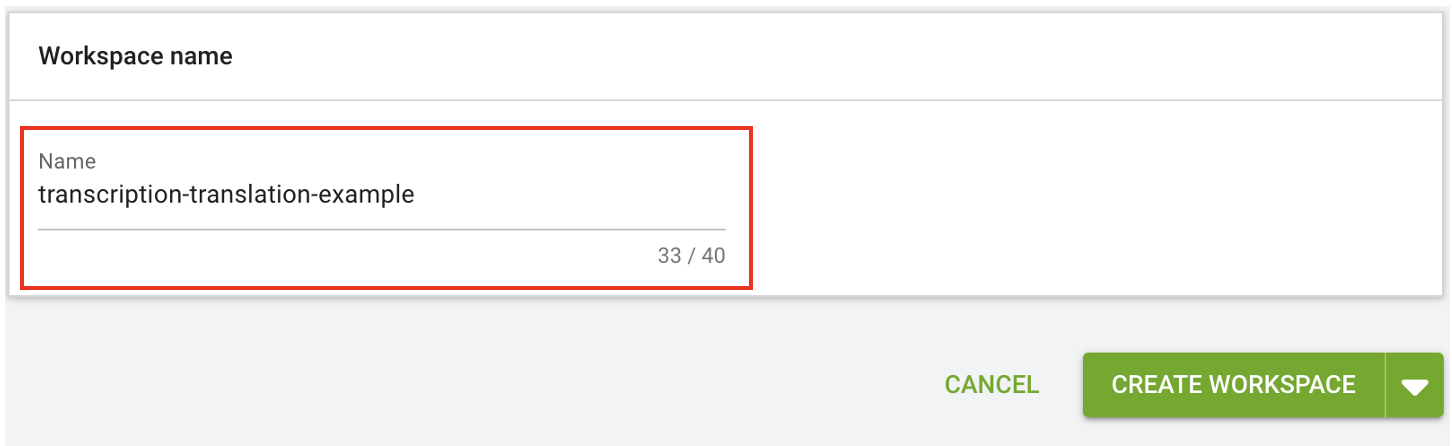
name Click the triangle next to “CREATE WORKSPACE”, then select “Advanced setup” from the pop-up menu.
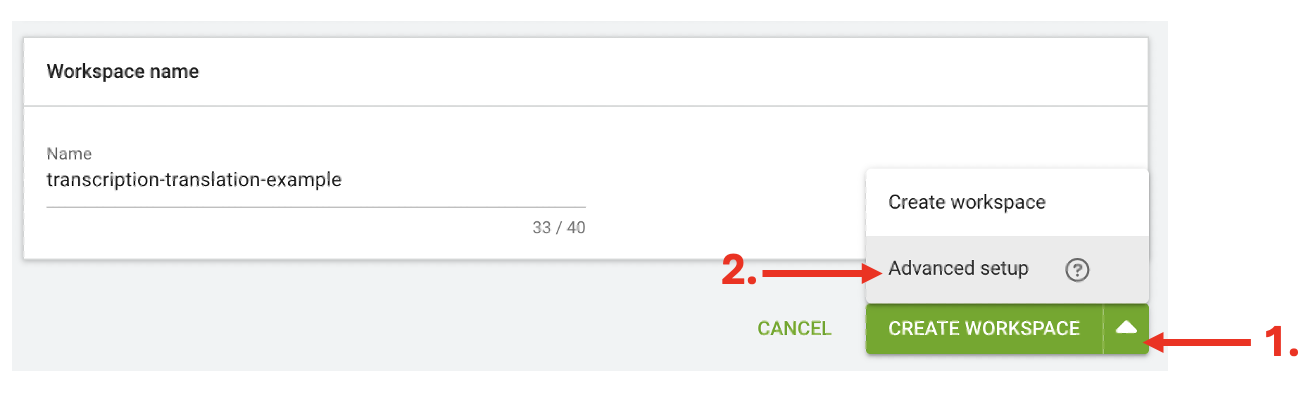
advance set up Under “Environment”, click “Tools”.
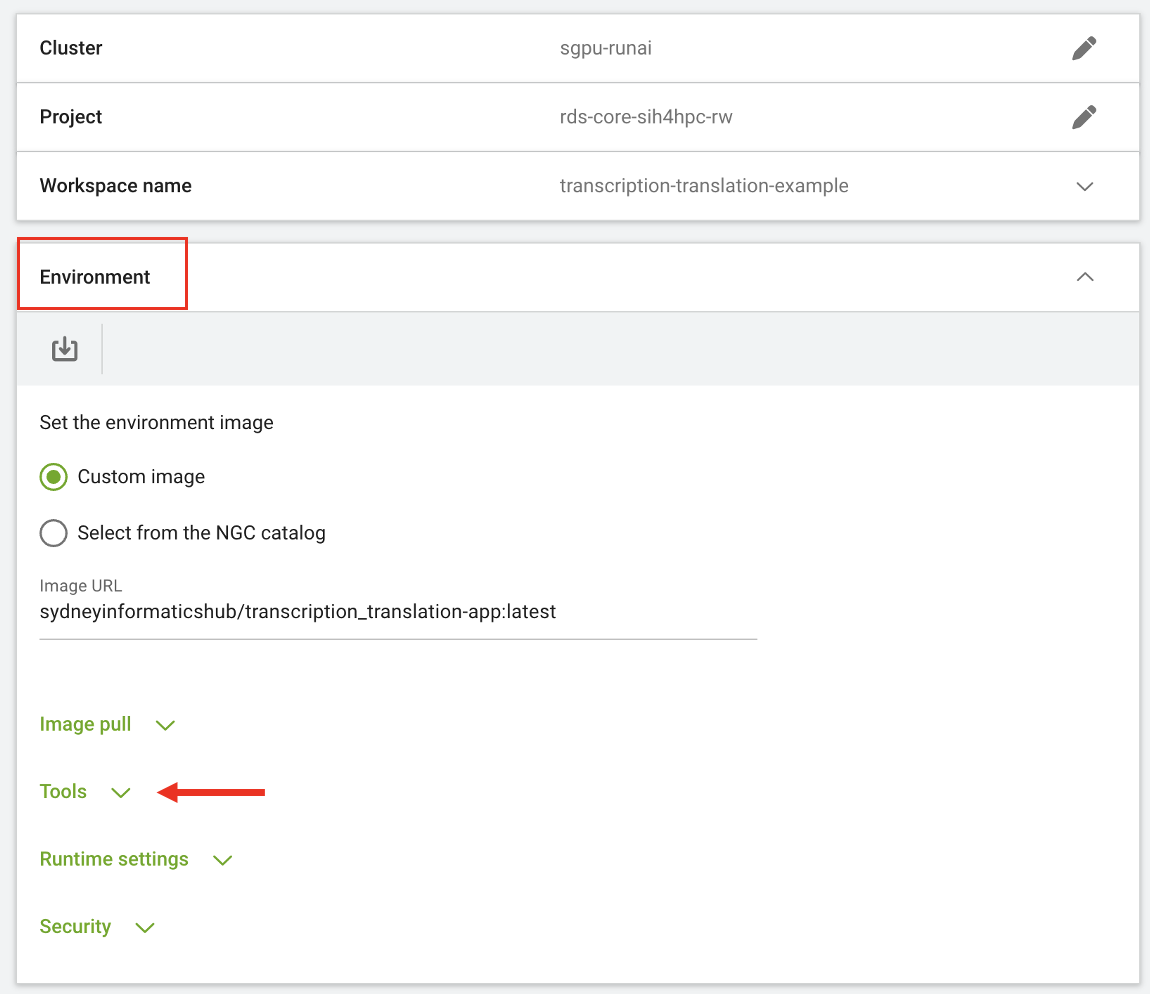
tools Under “Access”, the default setting is “All authenticated users”. To change this, click the pencil icon.
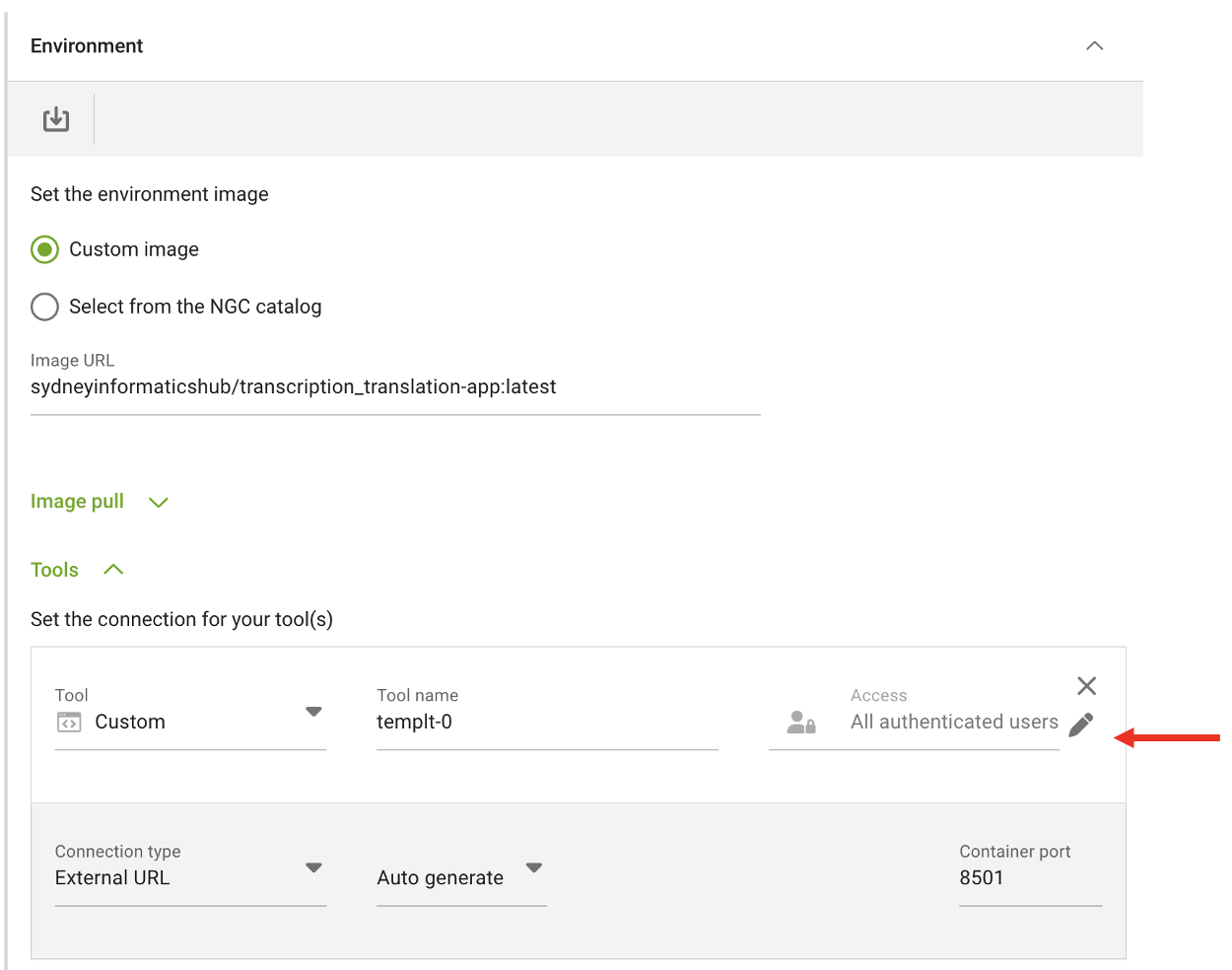
access In the pop-up menu, select “Specific users and service accounts”, then enter your email address in the grey box.
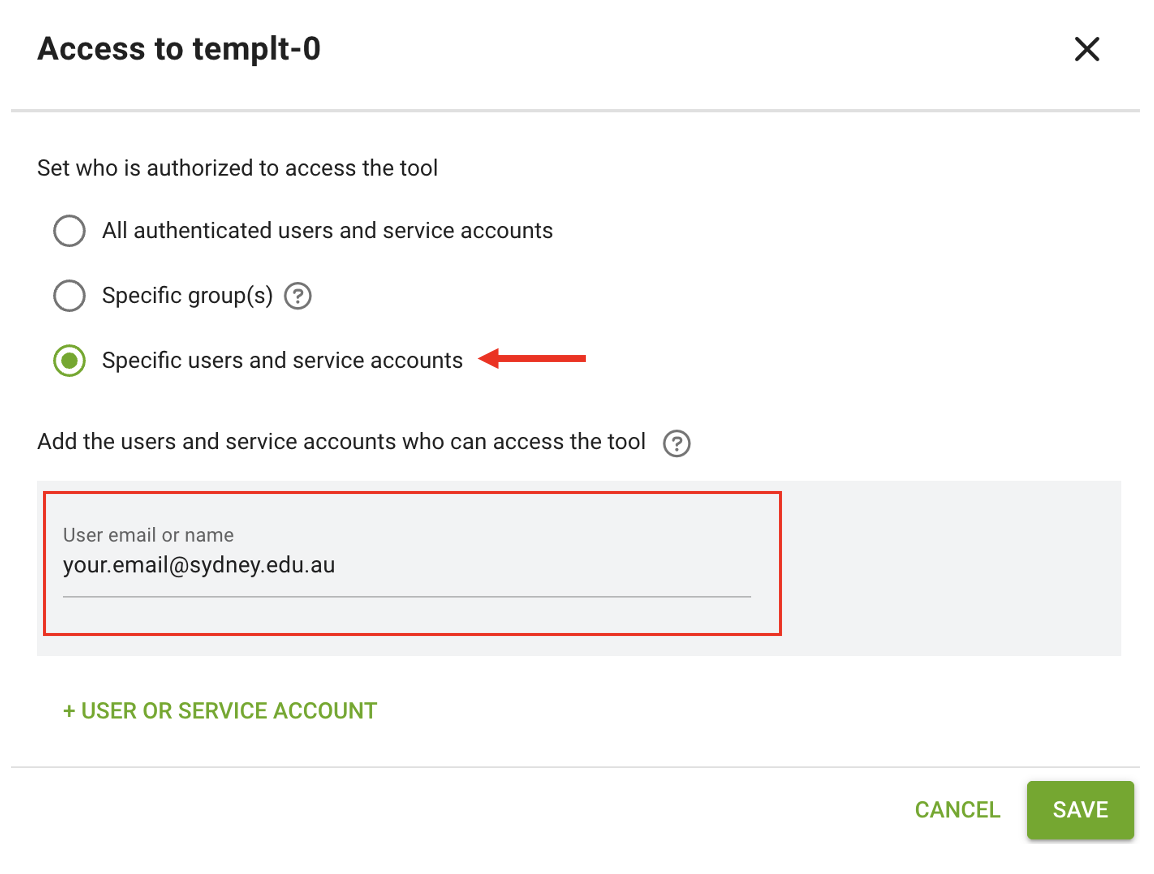
users To add additional users, click “+ USER OR SERVICE ACCOUNT”.
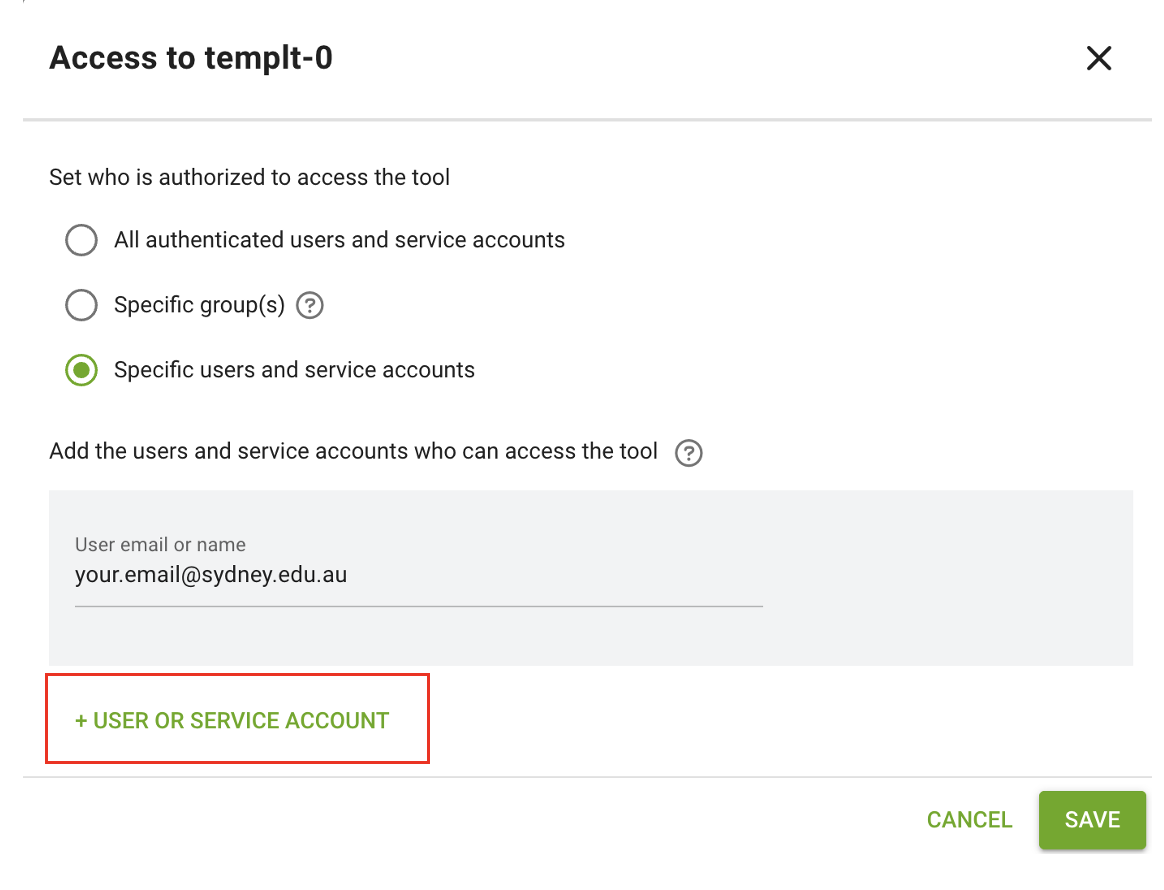
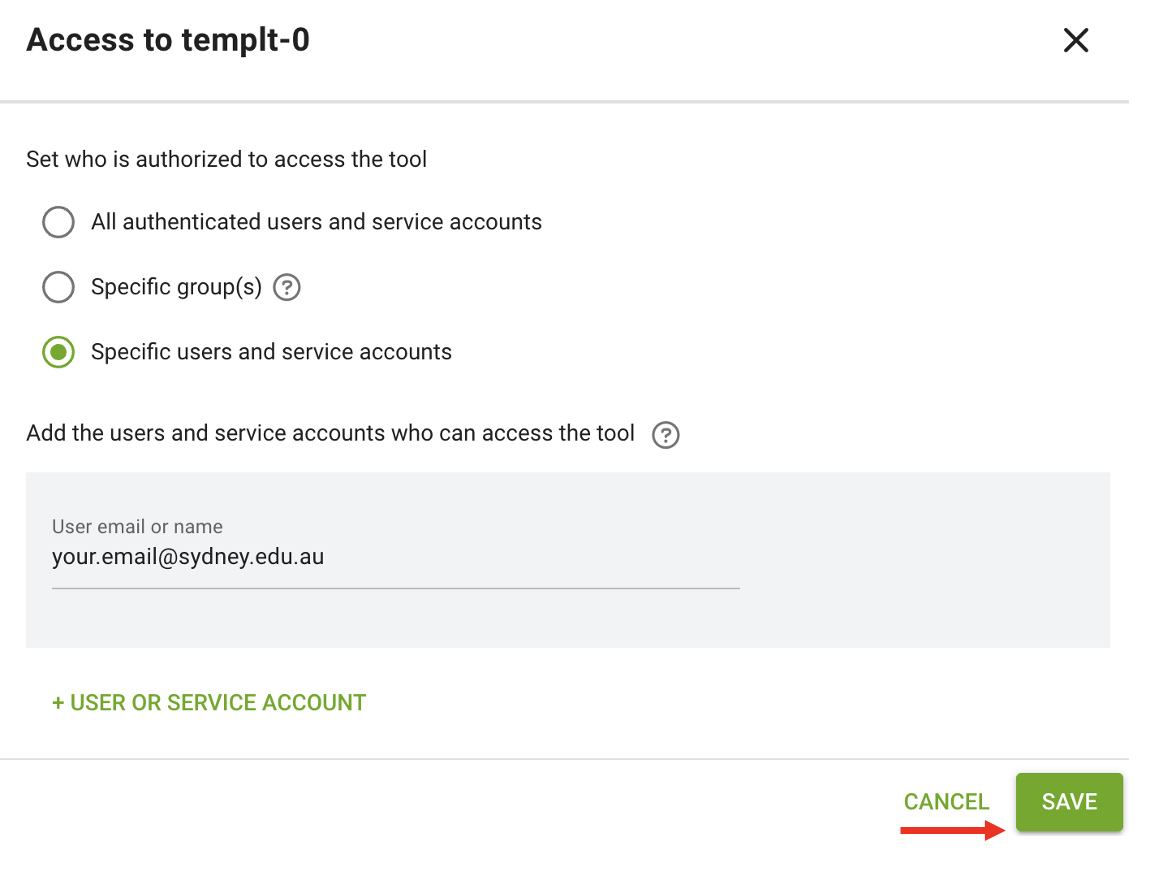
multiple users Once you have added all users, click “SAVE”.
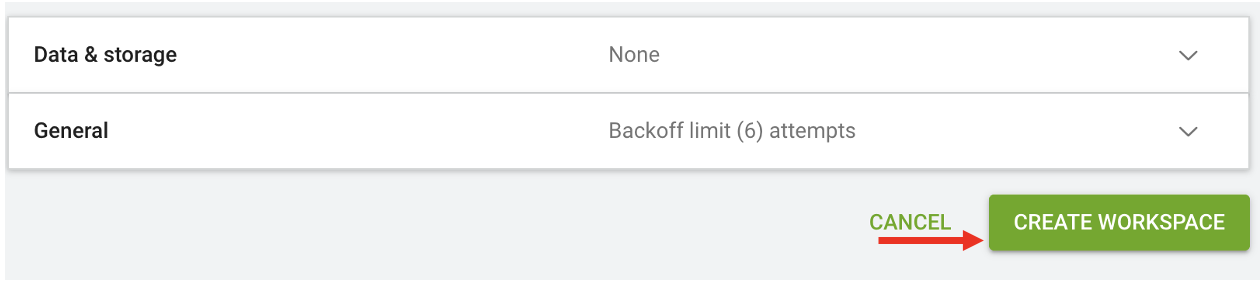
save Finally, scroll to the bottom of the page and click “CREATE WORKSPACE”.
Create You will now be taken back to the Run:ai Workloads page.
Step 3: Connect to the Transcription and Translation app
Your workload status will start on “Initializing”. This may take a couple of minutes.
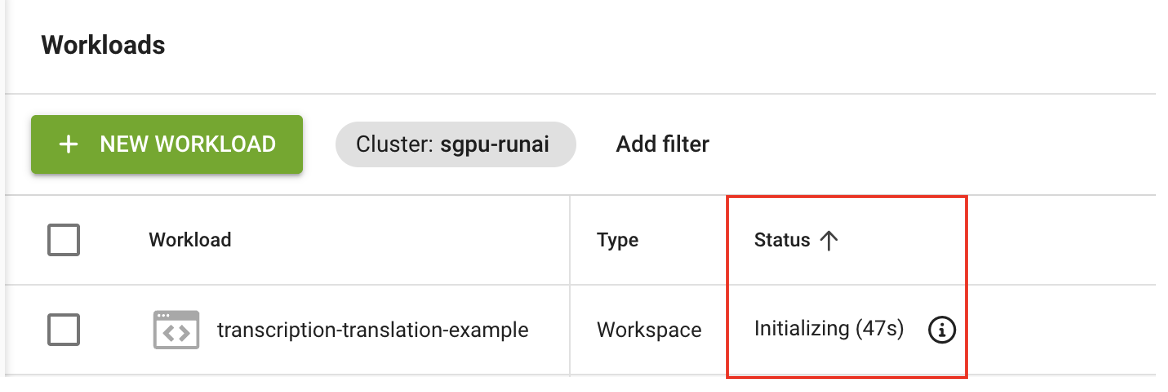
initializing When the status changes to “Running,” select your workload. You can then access the transcription and translation app interface by selecting “Connect.”
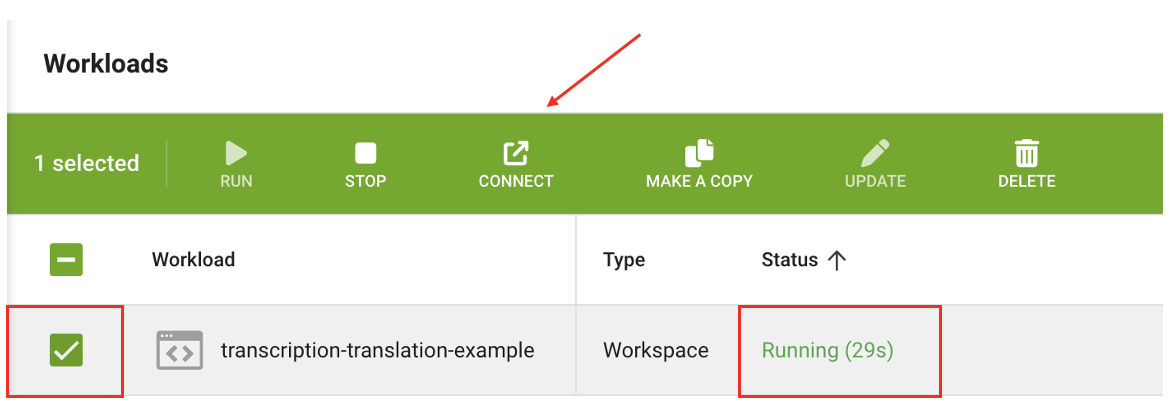
connect The transcription and translation app will now open in a separate tab in your browser.
For instructions on how to use the app, see the App user guide.